
Communication
Notice
The Notice section displays a table for managing announcements and alerts, including title, description, notice content, date, and options. Currently, no notices are listed in the system. Users can add new notices through the provided button and export data in Excel, CSV, PDF formats or print the list. A search bar allows filtering entries.

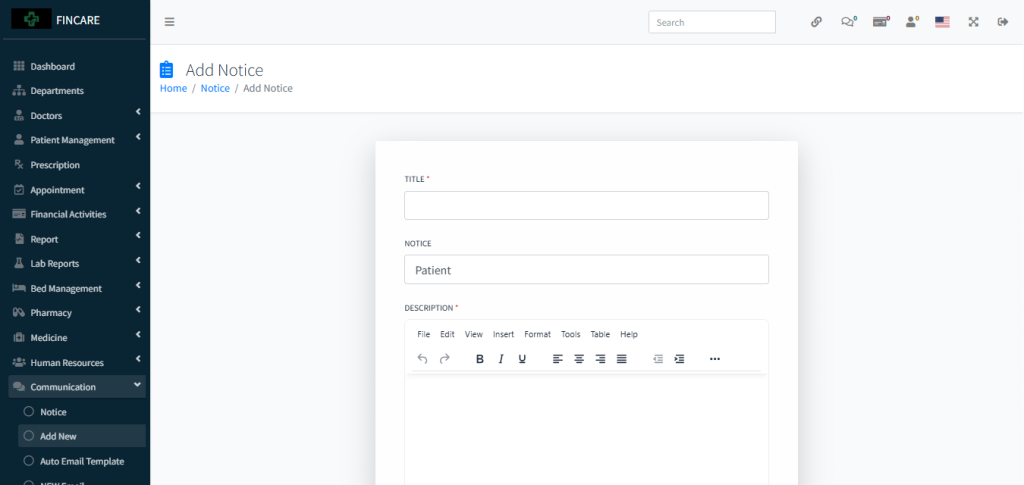
Add Notice
The Add Notice form allows users to create and publish announcements by entering a title, selecting a notice category, and providing a detailed description using a rich text editor. The form includes mandatory fields for title and description, with formatting options such as bold, italic, underline, alignment, and lists. Once completed, the notice can be submitted for display.
Auto Email Template
The Auto Email Template section displays a list of pre-configured email messages used for automated communication, including category, message content, status, and options. Currently, three templates are listed: one for payment confirmation, one for appointment confirmation, and one for appointment creation, all marked as active. Each template includes placeholders for dynamic data such as name, amount, doctor name, and date. Users can edit templates through the provided button and export data in Excel, CSV, PDF formats or print the list.

New Email
The Send Email interface allows users to dispatch messages to selected recipients, including all patients, doctors, donors, a single patient, or other groups. Users can choose from predefined email templates or create a new one. The form includes options to select the recipient group and template, with buttons for sending messages, managing templates, or adding new ones.

Sent Mail Messages
The Sent Messages section displays a table for tracking all previously sent emails, including message ID, date, content, recipient, and options. Currently, no messages are listed in the system. Users can export data in Excel, CSV, PDF formats or print the list. A search bar allows filtering entries.

Email Settings
The Email Settings page allows users to configure email integration for sending automated messages. It includes fields for selecting the email service provider (e.g., Gmail), entering the email address, and inputting the app-specific password. Instructions are provided for generating an app password for Gmail accounts. The sidebar provides access to related communication modules like Notice, Send Email, and Sent Messages. A Submit button saves the configuration.

Auto SMS Template
The Auto SMS Template section displays a list of pre-configured text messages for automated communication, including category, message content, status, and options. Currently, multiple templates are listed for various purposes such as payment confirmation, appointment confirmation, appointment creation, meeting schedule notifications, and doctor appointment confirmations. Each template includes placeholders for dynamic data like name, amount, doctor name, and date. All templates are marked as active and can be edited through the provided button. Users can export data in Excel, CSV, PDF formats or print the list.

Write Message
The Send SMS interface allows users to send text messages to selected recipients, including all patients, doctors, donors, or a single patient. Users can choose from predefined templates or create a custom message using dynamic placeholders such as name, phone, email, and address. The form includes options for selecting the recipient group, template, and composing the message. Buttons for adding new templates, viewing existing ones, and accessing sent messages are available.

Sent Messages
The Sent Messages section displays a table for tracking all previously sent SMS messages, including message ID, date, content, recipient, and options. Currently, no SMS records are listed in the system. Users can export data in Excel, CSV, PDF formats or print the list. A search bar allows filtering entries.

SMS Settings
The SMS Gateways section displays a list of available SMS service providers, including Clickatell, MSG91, Twilio, and 80Kobo, each with a Manage button for configuration. Users can select a gateway from the options on the right, with Twilio currently selected, and submit their choice. The sidebar provides access to related communication modules like Send SMS, Auto SMS Template, and Sent Messages. This setup enables integration with external SMS services for automated messaging.

Chat
The Chat interface enables real-time communication between staff members, allowing messages to be sent and received within the system. The chat panel displays a list of available users, including Admin, Tanvir, Mr. Receptionist, and Mr. Laboratorist, with Tanvir currently selected. A message “hello cutie” is visible in the conversation. Users can type and send messages using the input field and Send button. The sidebar provides access to related modules like Notice, Email Settings, and SMS Gateways.
