
Financial Activities
Add New Invoice
The Add New Invoice form enables users to create financial records for patients by selecting the patient, doctor, and required services or items. It includes a search field for adding items such as lab tests or treatments, with an option to add new items manually. The right panel calculates subtotal, applies discount and VAT, and displays gross total, deposited amount, due amount, and payment type. Users can save the invoice, save and print, or save as draft.

All Invoices
The Invoices section displays a list of all generated invoices with details including patient name, date, total amount, VAT, discount, grand total, paid amount, due balance, and source (e.g., OPD or Appointment). Multiple entries are shown for Salma Nazir, with varying amounts and payment statuses. Each invoice includes options to view or manage the record. Users can filter by date range, export data in Excel, CSV, PDF formats, or print the list.

Draft Invoices
The Draft Payments section displays a table for managing unpaid or pending payment records, including date, patient name, doctor, subtotal, discount, grand total, remarks, and options. Currently, no draft payments are listed. Users can add new entries through the provided button and export data in Excel, CSV, PDF formats or print the list.

Due Collection
The Due Payments section displays a list of outstanding invoices requiring payment, including invoice ID, patient name, doctor, date, source, subtotal, discount, grand total, paid amount, and due balance. Multiple entries are shown for Salma Nazir with Doc Benish, each having a due amount of Rs. 2000. Each record includes a Deposit button to process payments. Users can filter by date range, export data in Excel, CSV, PDF formats, or print the list.

Invoice Items / Lab Tests
The Invoice Items / Lab Tests section displays a list of medical services and laboratory tests available for invoicing, including name, code, service point, price, doctor’s commission, type, and options. Currently, one entry is listed: X-ray with code K0001, priced at Rs. 500, categorized as a Diagnostic Test. Each item can be edited, deleted, or used as a template. Users can export the data in Excel, CSV, PDF formats or print it.

Create Invoice Items / Lab Tests
The Create Invoice Items / Lab Tests form allows users to add new medical services or laboratory tests for invoicing. It includes fields for item or lab test name, code, service point, price, doctor’s commission rate, and type. The type can be set as Lab Test or other categories. Once filled, the item will be available during invoice creation. A Submit button finalizes the entry.

Expense
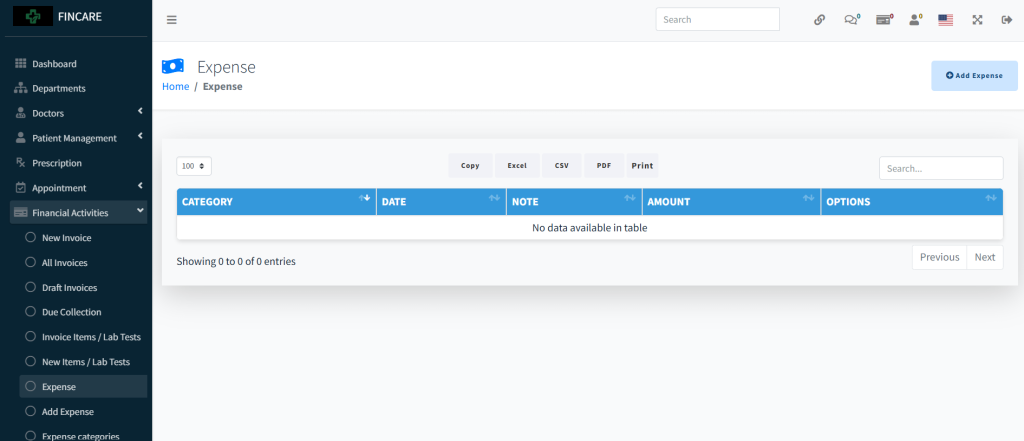
The Expense section displays a table for recording and managing organizational expenditures, including category, date, note, amount, and options. Currently, no expenses are listed. Users can add new entries through the provided button and export data in Excel, CSV, PDF formats or print the list.
Add Expense
The Add Expense form allows users to record financial expenditures by entering the expense category, amount in rupees, and optional remarks. The form includes mandatory fields for category and amount, with a Submit button to save the entry. Once submitted, the expense is added to the main expense list.

Expense Categories
The Expense Categories section displays a list of predefined categories used for classifying organizational expenses. It includes columns for category name and description, with options to edit or delete entries. Currently, no categories are listed. Users can add new categories through the provided button and export data in Excel, CSV, PDF formats or print the list.
